
Creating Transcriptions in ChatGPT
You are encouraged to create transcriptions in ChatGPT in one of two ways: fast mode or full mode.
Fast Mode: Copy/Paste
Upload your video/audio to ChatGPT and copy/paste the following prompt:
“Please transcribe this interview, add speaker labels and timestamps at each speaker change, lightly clean grammar while preserving voice, and flag anything unclear.”
Full Mode: Step by Step
Step 1: Prepare Your Recording
- Use your interview audio (phone, Zoom, recorder, etc.)
- Save as MP3, WAV, or video file
- Make sure audio is clear – this can affect the accuracy of your transcription
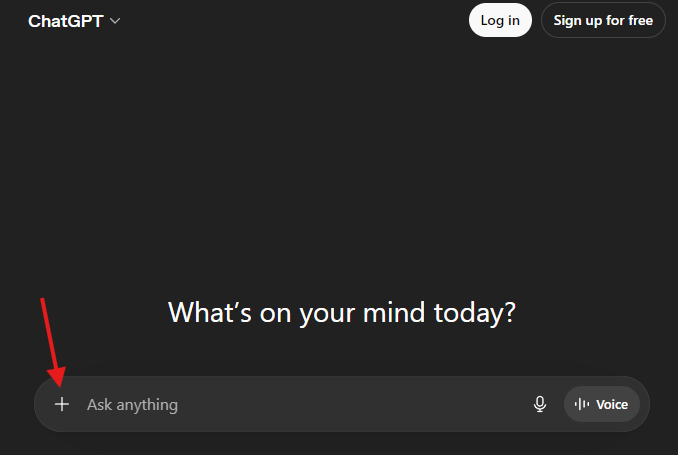
Step 2: Upload to ChatGPT
- Click the attachment button
- Upload your file
- Prompt ChatGPT to transcribe your file, e.g. “Please transcribe this interview.”
Step 3: Add Timecodes for Reporting
- Timecodes are essential for fact-checking, quoting, and editing
- Examples:
- “Add timestamps every 30 seconds.”
- “Add timestamps at each speaker change.”
- “Add speaker labels and timestamps throughout.”
Step 4: Clean and Verify Transcription
- Raw transcripts contain various human errors that are not publish-ready. Fix these mistakes before publishing
- ALWAYS double-check quotes against the original audio before publishing
- Examples:
- “Lightly clean grammar while keeping the speaker’s voice.”
- “Remove filler words unless they affect meaning.”
- “Mark anything unclear or hard to hear.”
Step 5: Format for Journalism Use
- Once your transcription is cleaned, make sure to format it properly
- Prompt ChatGPT to format the transcription as a journalism-style interview transcript
- Example format (you can provide this to ChatGPT as a template):
[00:01:12] Reporter: Can you describe what happened?[00:01:18] Source: We arrived around 9 a.m., and things were already chaotic…
Step 6: Export to Google Docs
- Copy transcript from ChatGPT and paste in a blank Google Docs
OR
- Ask ChatGPT to provide a Word document of transcript
- Download Word document and upload to Google Docs
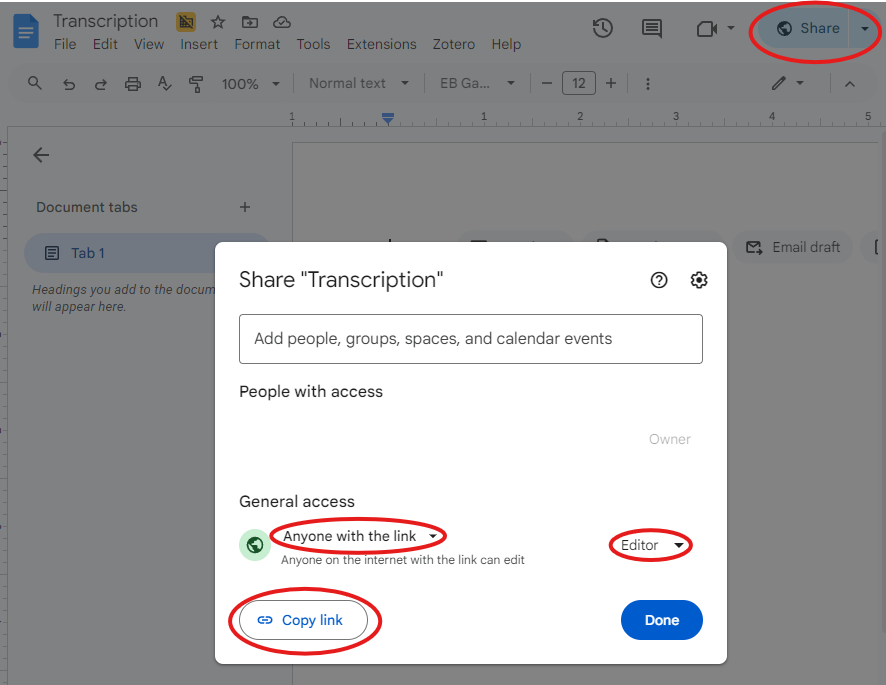
Step 7: Share Your Transcription
- Click “Share”
- Set permissions to “Anyone with a link” and “Editor”
- Click “Copy link”
- Paste the link in your Slack channel
Ethics and Accuracy Reminder
AI transcriptions can make mistakes! ALWAYS verify names, quotes, and sensitive info, and never publish without reviewing the original audio.