
How to create a post for the Annenberg Media Center website
Creating a post
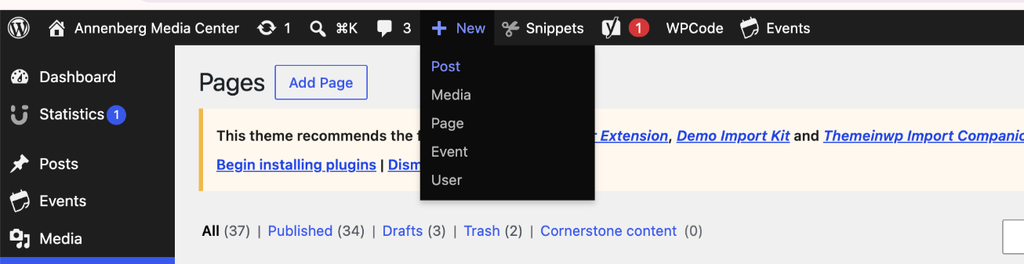
- Navigate to the top of the page and click New + Post
Adding Content
- If you’re referencing an existing document, follow it as closely as possible unless it’s been discussed to do otherwise
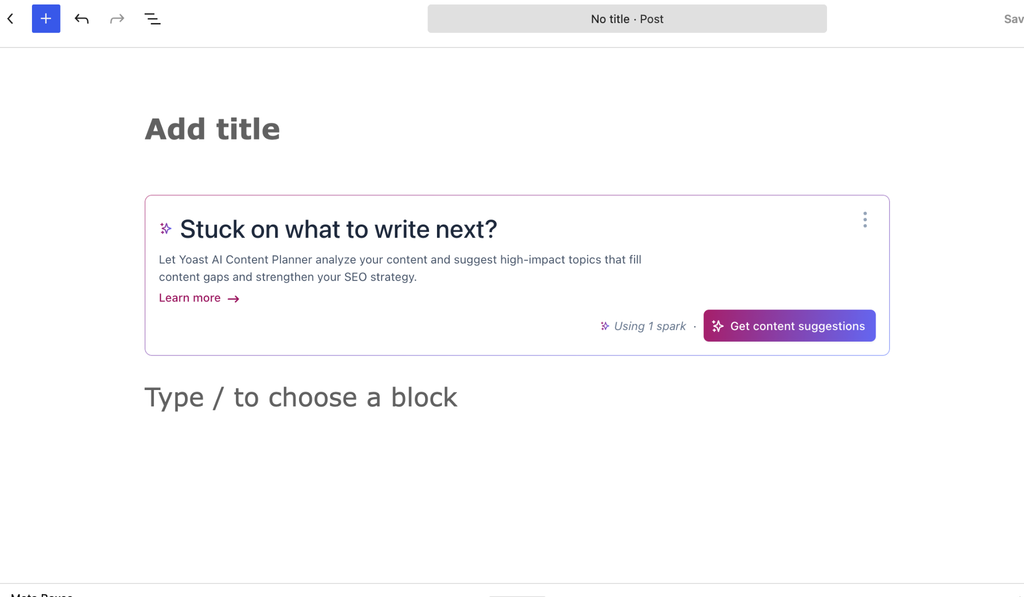
- You can add the headline, main text, and photos in the main post box
- Remember to add all hyperlinks needed and ensure that the links still work
- The top right-hand corner has a “Save Draft button” and a “Save” button if you plan on finishing the post later
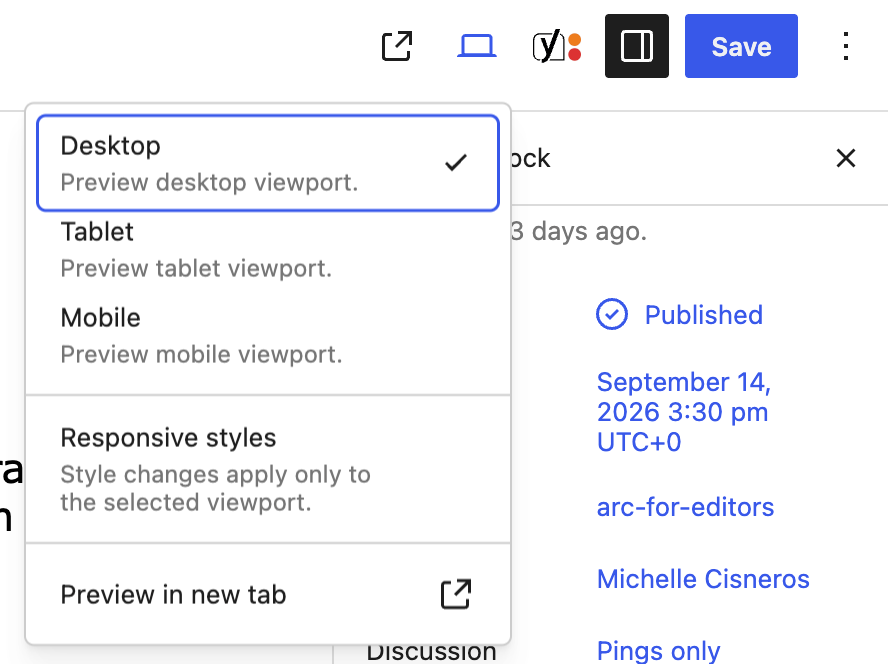
- You can preview the page by clicking on the preview button in the right-hand corner, which allows you to see what a post will look like on the website before it’s actually published
Style Notes:
- Center all photos
- Try to embed most videos
- Make subsection headlines bold to differentiate them from the rest of the text
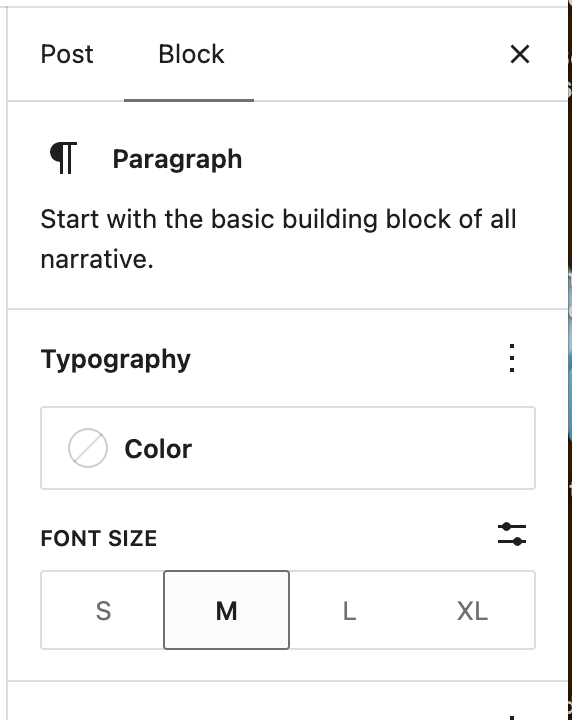
- Most text will be “medium.” This can be checked on the right side of the screen where there’s information on the particular block you’re on
Publishing:
- Navigate to the Meta Box at the bottom of the page and go to the appearance settings to disable the featured image
- There’s a page template that adds the large newsroom photo at the top of the page, which makes the post harder to read when it’s published
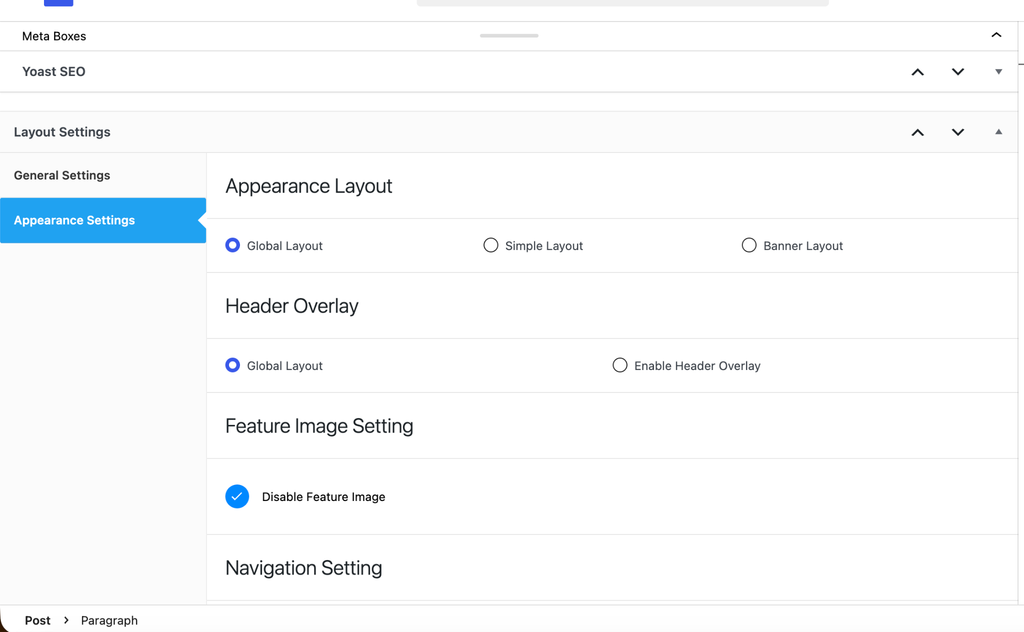
- Remember to change the excerpt picture to one that’s relevant to the post
- The featured image will still show up on pages where many of the posts live, such as Digital Trainings and Newsroom Guides
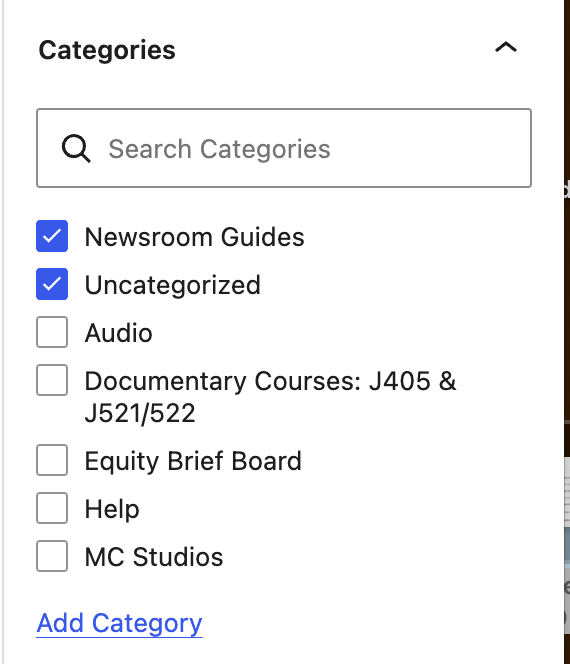
- Navigate to the right column of the screen again and under Post, choose the correct category for your post
- For newsroom guides, the category is Newsroom Guides, for Digital Trainings, the category is Web
Once you’re done, you can publish the post by clicking the publish button in the right-hand corner. Navigate to the page on the website to ensure it’s in the correct place and that everything looks and reads as you intended.