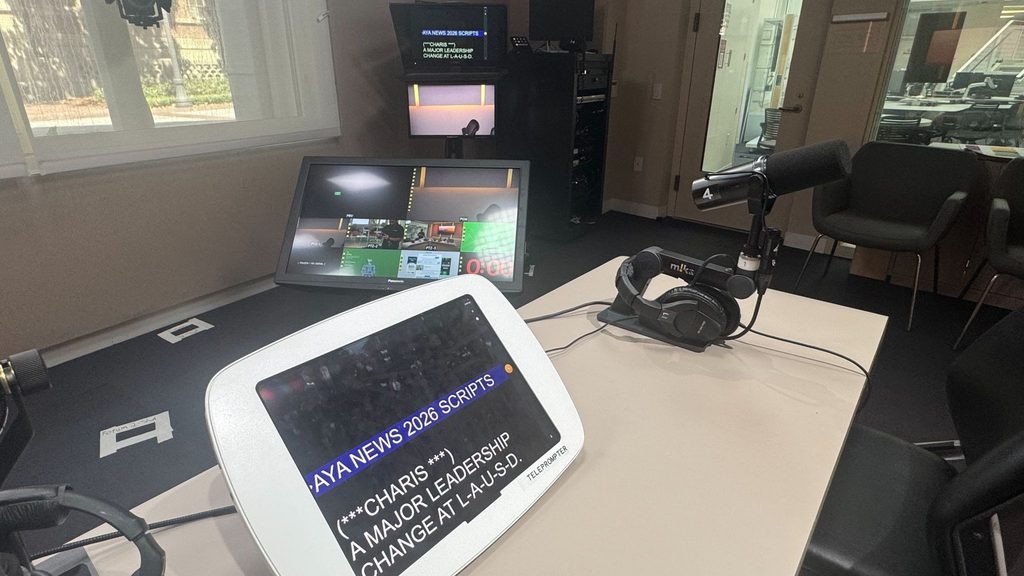
How to use Studio A Teleprompter with PromptSmart Pro App
This is a guide on how to AirDrop a script to the Studio A Teleprompter iPad and open the script in the PromptSmart Pro App.
If you don’t have an Apple device, then you will need to email the document to yourself in order to access it from the Teleprompter iPad.
How to use Studio A Teleprompter with PromptSmart Pro App
This is a guide on how to AirDrop a script to the Studio A Teleprompter iPad and open the script in the PromptSmart Pro App.
If you don’t have an Apple device, then you will need to email the document to yourself in order to access it from the Teleprompter iPad.
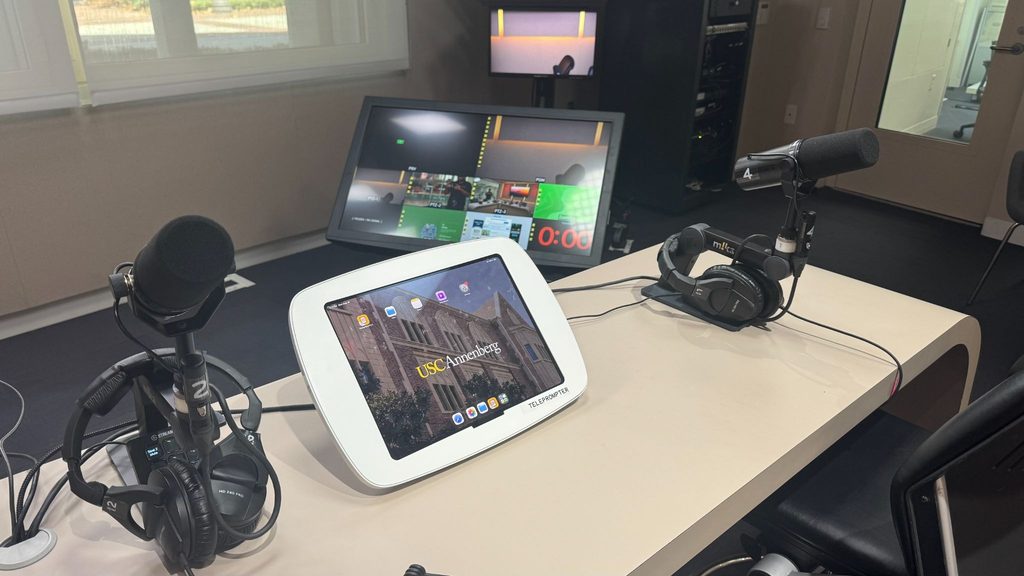
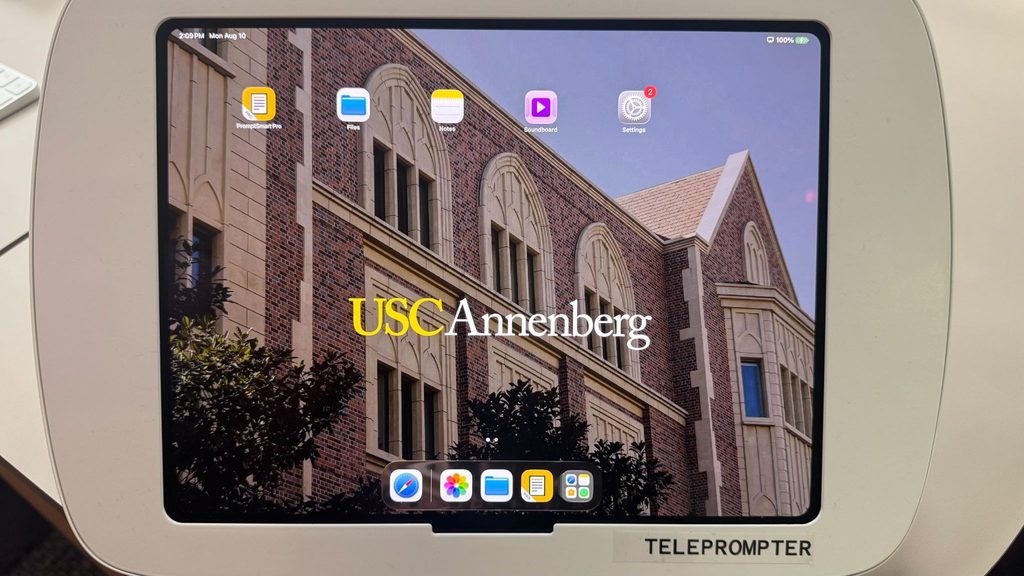
Open and Change AirDrop Settings
- Access Control Center
- Swipe down from the top-right corner of the iPad screen to reveal the iPad Control Center.Open Network Settings
- Swipe down from the top-right corner of the iPad screen to reveal the iPad Control Center.Open Network Settings
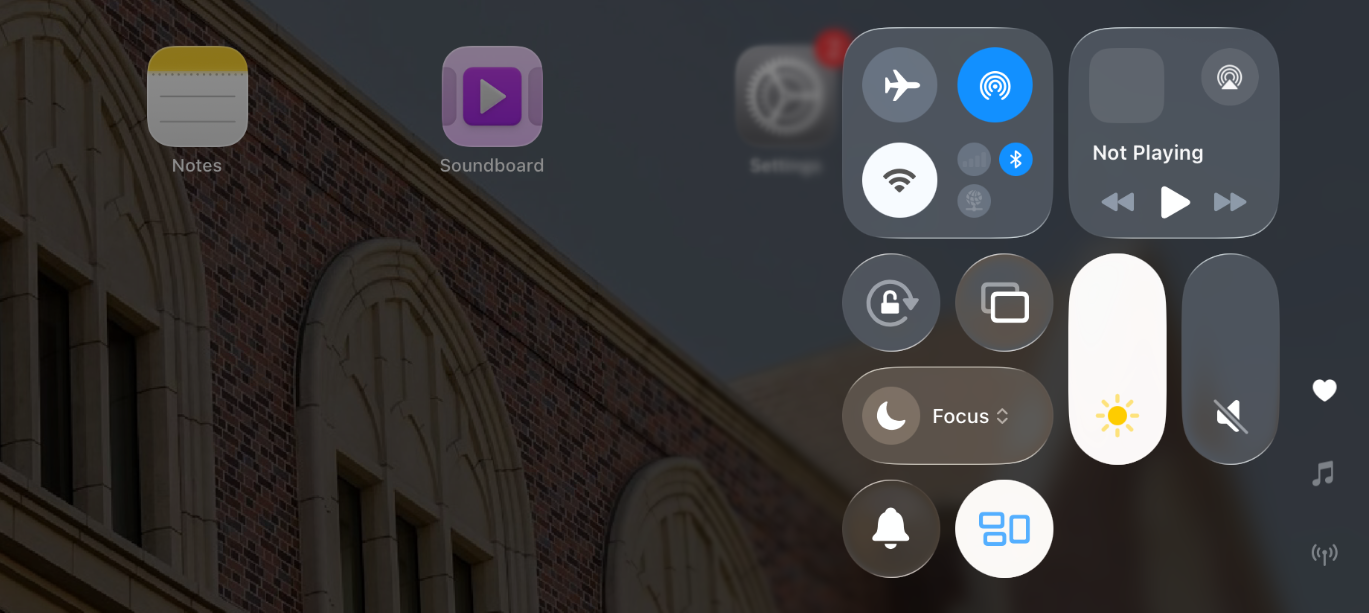
- Open Network Settings
- Tap and hold the network controls block (top-left tile featuring Wi-Fi and Bluetooth icons) to expand the options.
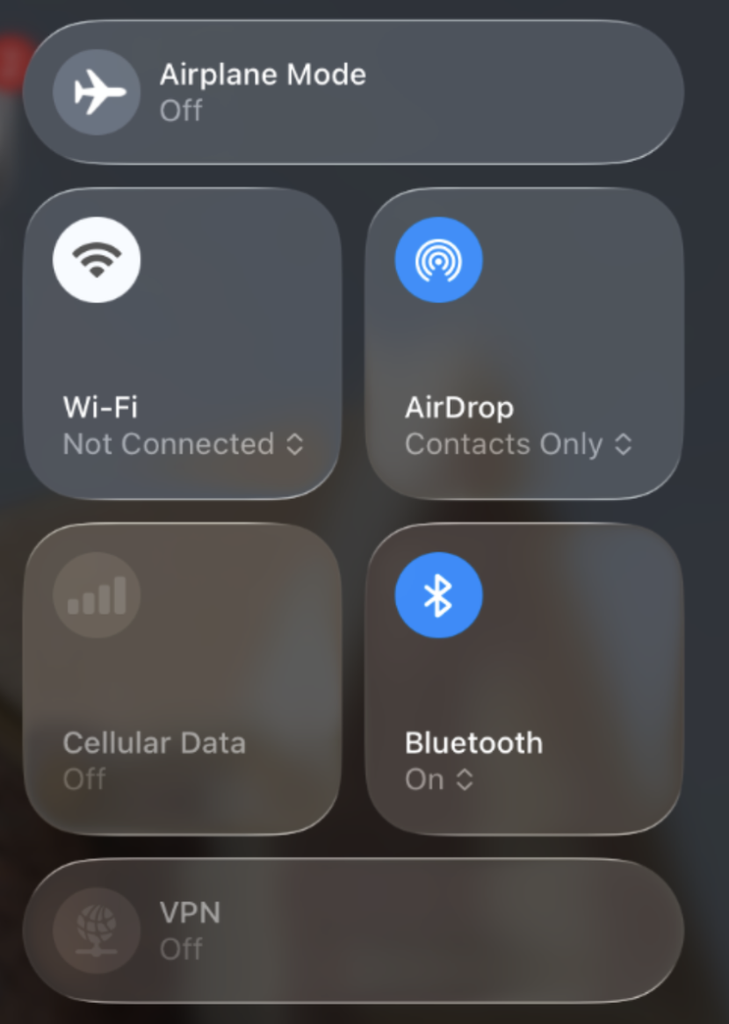
- Adjust AirDrop Permissions
- Tap the AirDrop icon to bring up visibility preferences.
- By default, AirDrop may be set to Contacts Only.
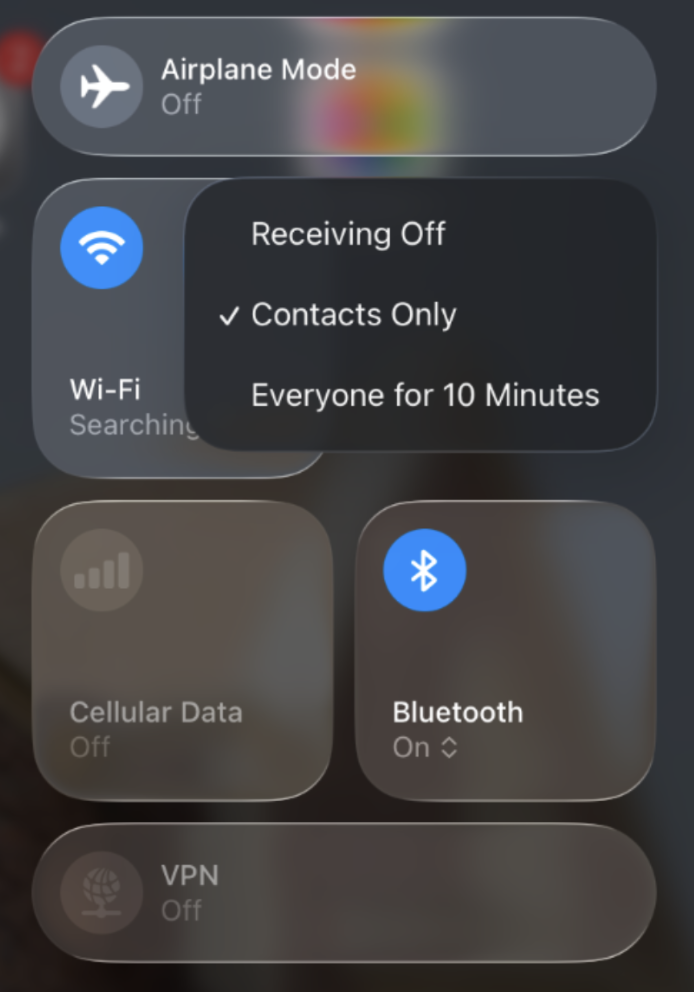
- Tap Everyone for 10 Minutes to allow file transfers from any nearby Apple device.
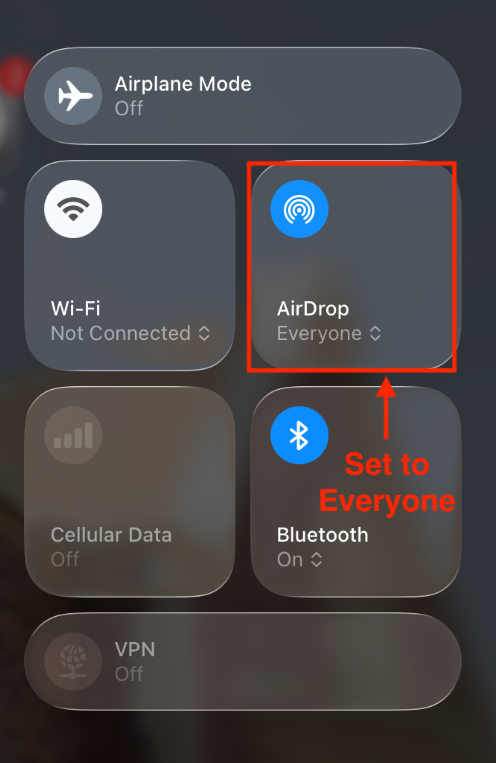
Send the Script File via AirDrop
In order to use airdrop, you must use an Apple device such as a Mac Book or iPhone.
- Locate script on your device
- If on a Mac, right-click the document and select Share.
- If on an iPhone, tap on the share icon.
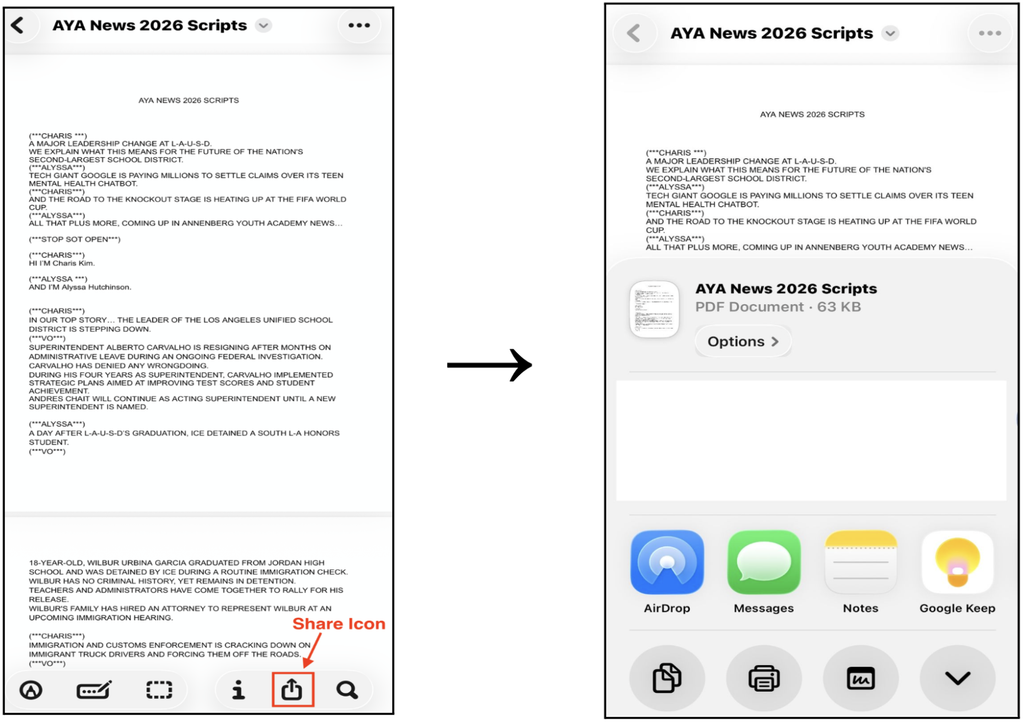
- Send file to iPad
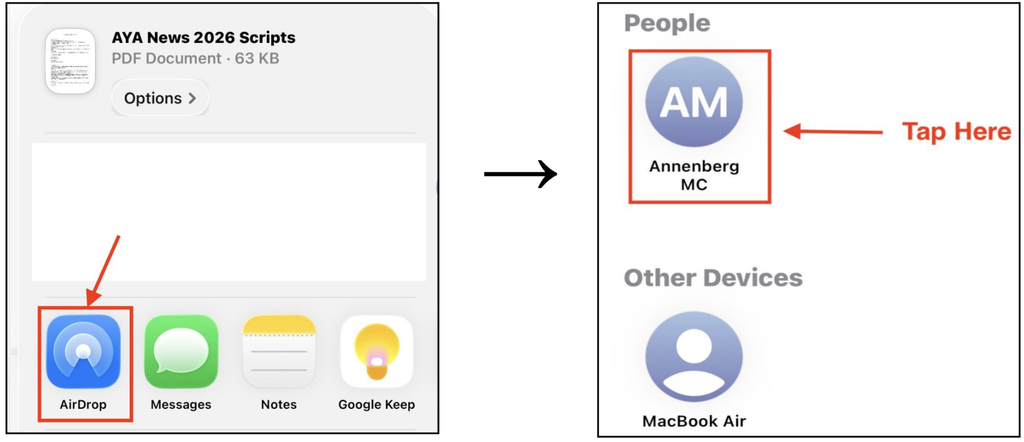
- Select AirDrop and a list of nearby apple devices will appear.
- Tap Studio A Teleprompter or Annenberg MC from the list.
- Accept the Incoming Transfer
- At the top of the iPad a notification will appear showing the document name.
- Tap Accept and the file will go to the iPad’s Downloads folder.
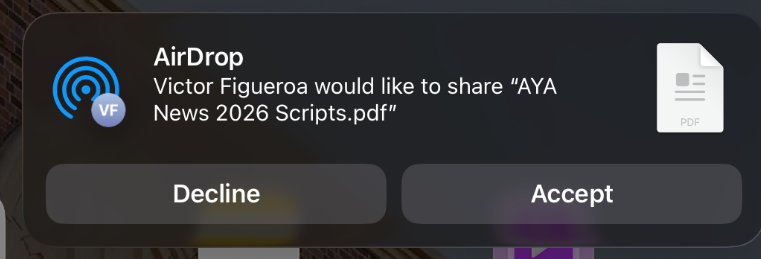
- NOTE: You might be prompted to enter a code if this is the first time using AirDrop with the Teleprompter iPad.
Run the Script in PromptSmart Pro App
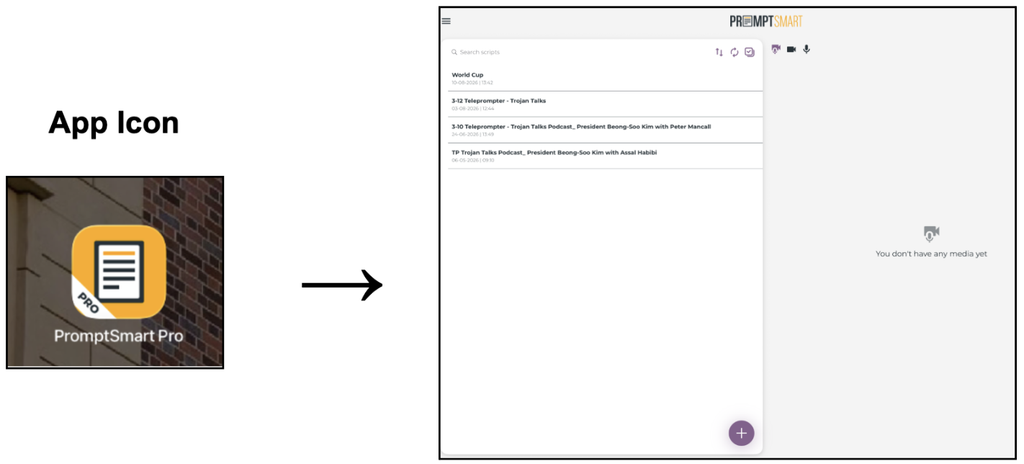
- Launch the PromptSmart Pro app from the iPad Home Screen
- Import new Scripts
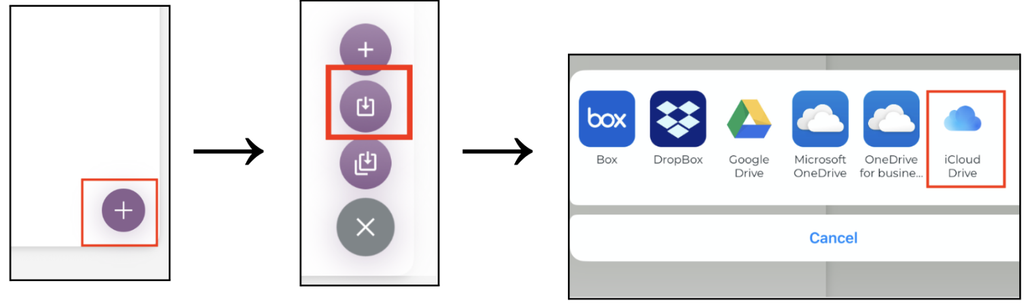
- Tap the + button at the bottom of the script list, then tap the download icon to show import options.
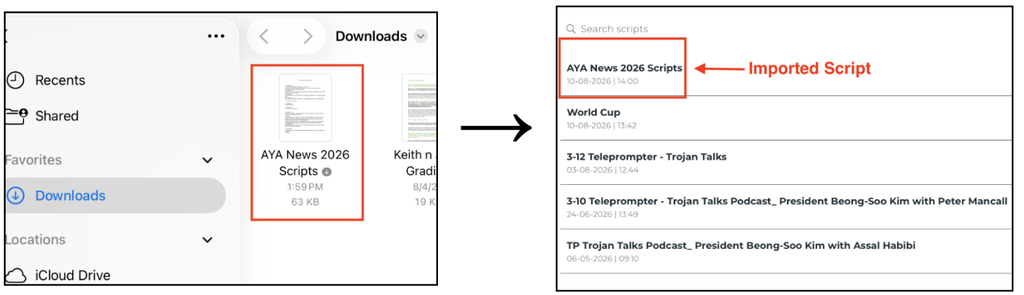
- Select iCloud Drive to access local files from the iPad.
- Select your airdopped script from the downloads and the script will appear in the script list.
- Load and Run the Teleprompter
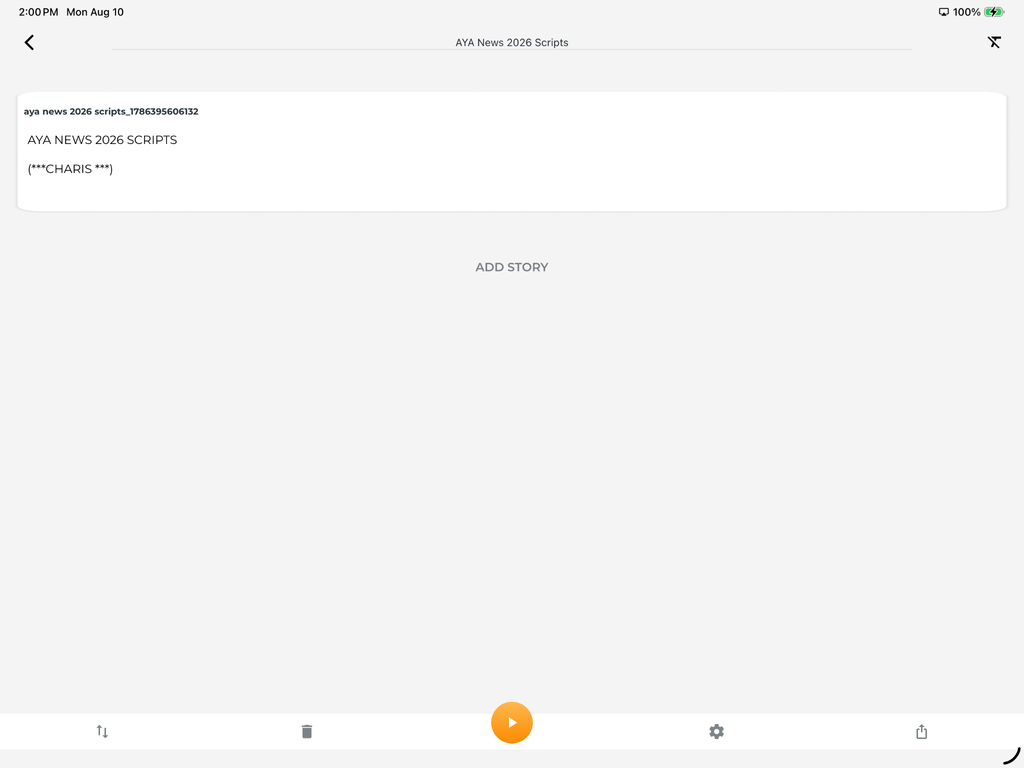
- Tap on the script name from within the PromptSmart Pro app.
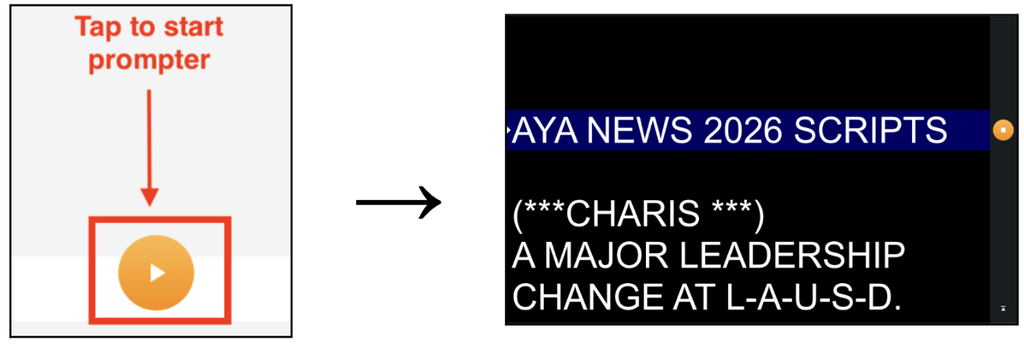
- Tap the yellow Play button at the bottom of the screen to begin using the teleprompter.
- The teleprompter is voice activated and will automatically scroll as you read.
- If you would like the teleprompter camera to be moved for a different shot or location, please ask a tech supervisor to assist.