Using Images with Creative Commons licensing
Let’s say you need a picture of a turtle for your story.
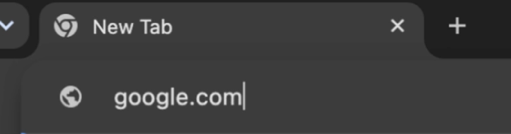
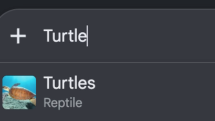
Go to google.com, and type “turtle” into the search field.
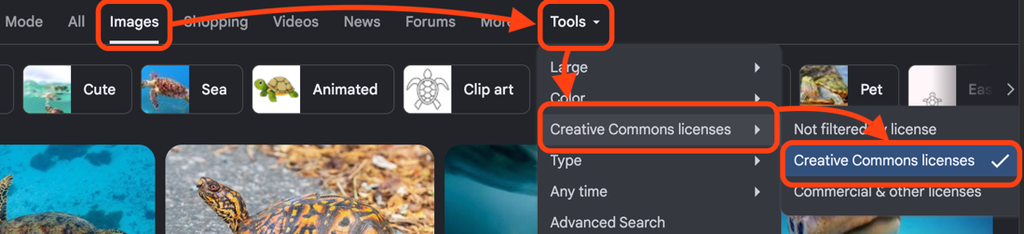
In the bar below the search field, click “Tools,” select “Usage rights,” and then choose “Creative Commons licenses.” This will filter the results to show images labeled with Creative Commons licenses.
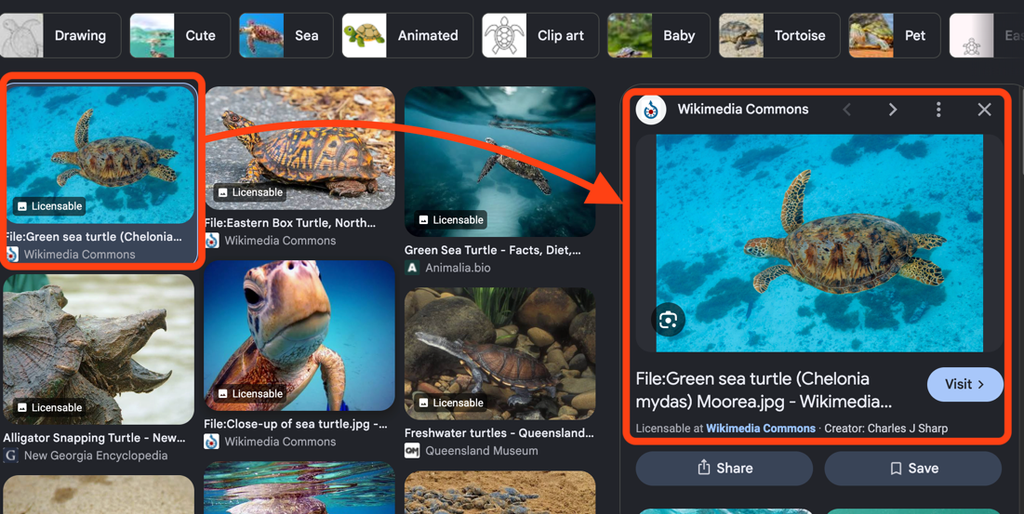
Find a photo you would like to use and click on it. A sidebar will open on the right, where you can find the source of the photo. Click the photo again to open the original webpage.
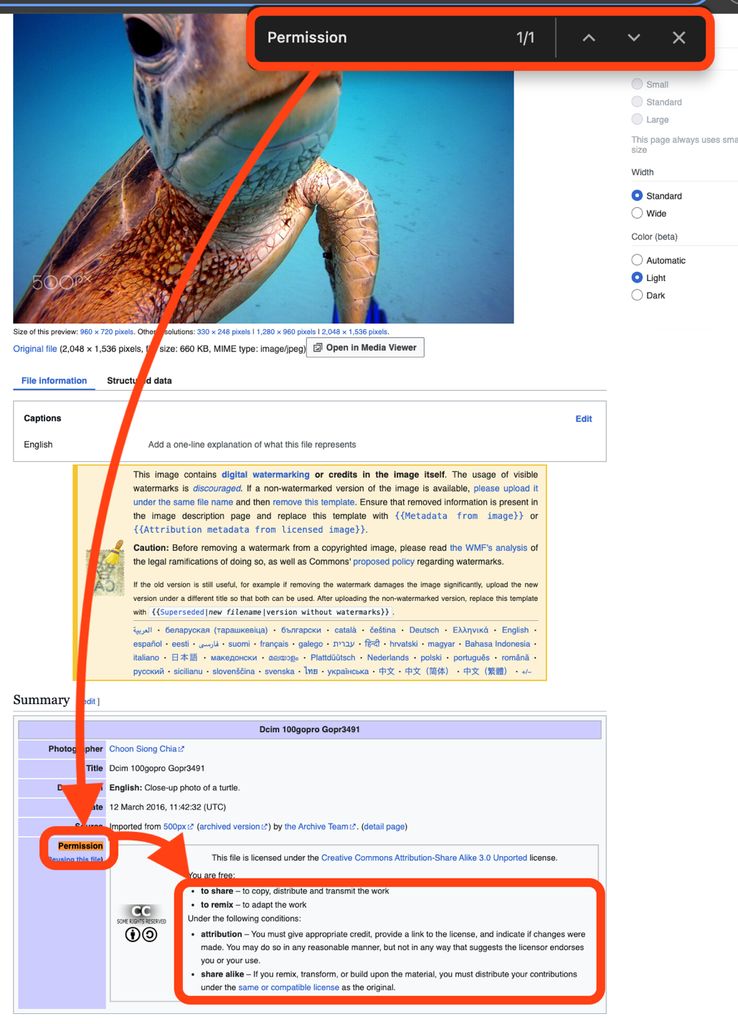
On the source webpage, look for the image’s usage instructions. To help locate them, open “Find on Page” (usually Ctrl+F on Windows or Command+F on Mac) and search for terms such as “usage,” “rights,” “Permission” or “Creative Commons.” If you cannot find information about the image’s usage rights, it is best to choose another image.
Try to find the image created on a personal website if available. If it is not, please cite the webpage where the image was originally sourced.
Tip:
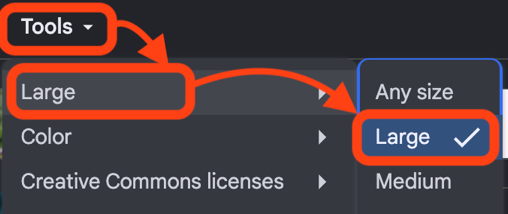
The larger and higher-resolution the photo is, the more flexibility you will have when scaling it. Under “Tools” in Google Image Search, select “Size,” and then choose “Large” to filter the results for higher-resolution photos. You can often find an even higher-resolution or original-resolution version by searching the source website.
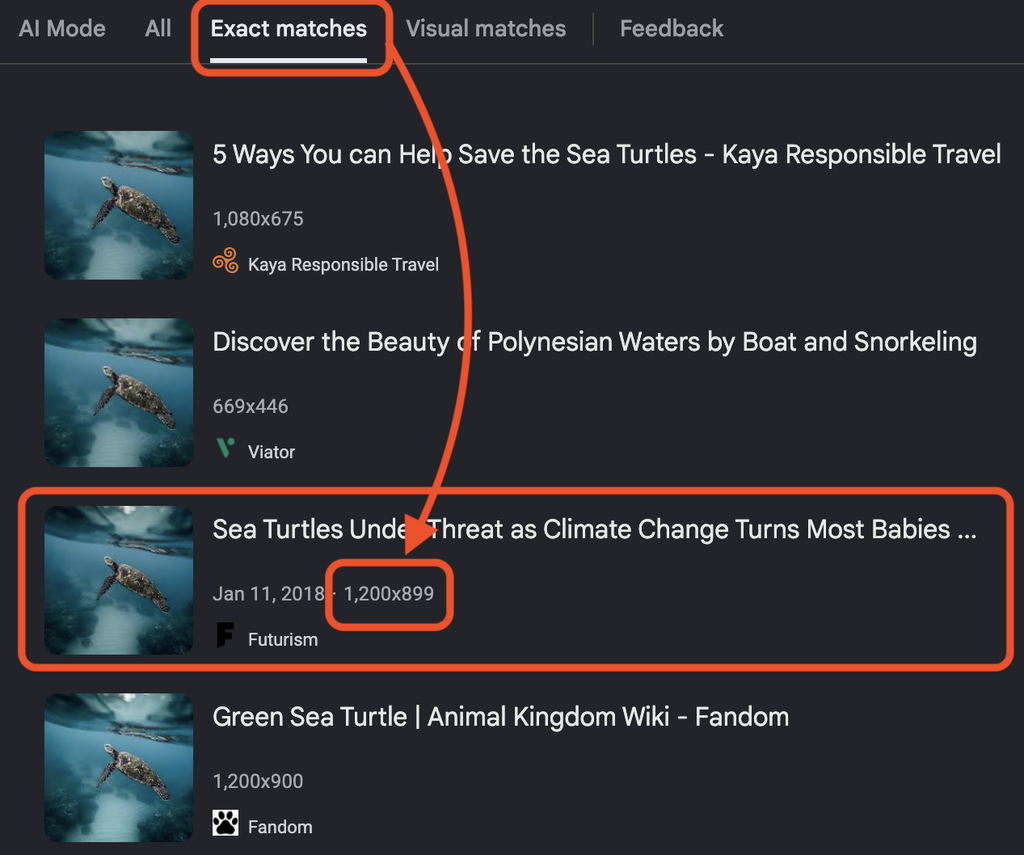
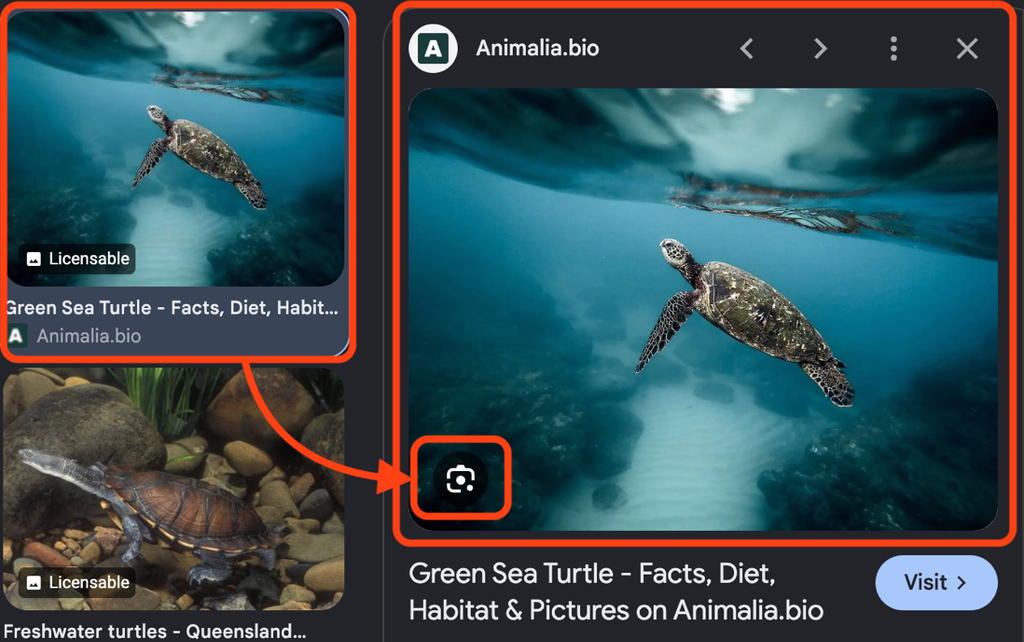
Alternatively, if you find a photo with acceptable usage rights but have trouble locating a high-resolution version, you can use Google’s reverse image search to find other sources. When you click on an image, the version displayed in the sidebar will have a small camera icon in the lower-left corner. Click the camera icon and scroll down to view similar images.
To refine the search select “Exact matches” to display only instances of the same photo. The image dimensions will appear next to each result, helping you locate the highest-resolution version.