Spotify for Creators
Logging In
- Go to creators.spotify.com.
- Click Log in in the upper-right corner.
- When prompted to log in with your Spotify account, click Continue with Spotify. You will be redirected to the Spotify login page.
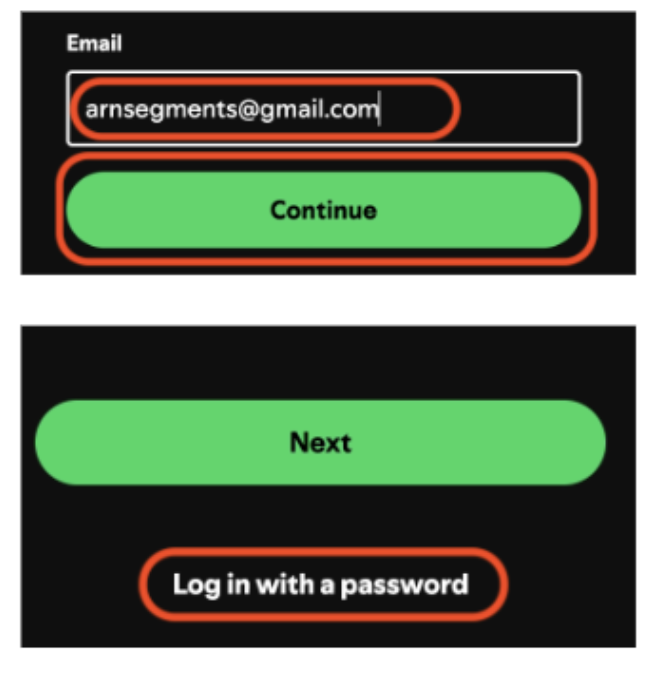
- Enter arnsegments@gmail.com in the email field and click Continue.
- On the next screen, click Log in with a password, located below the field requesting a code.
- Look up the current password in the Ann Vault and enter it.
- You will be redirected to Spotify for Creators.
Uploading an ARN Story
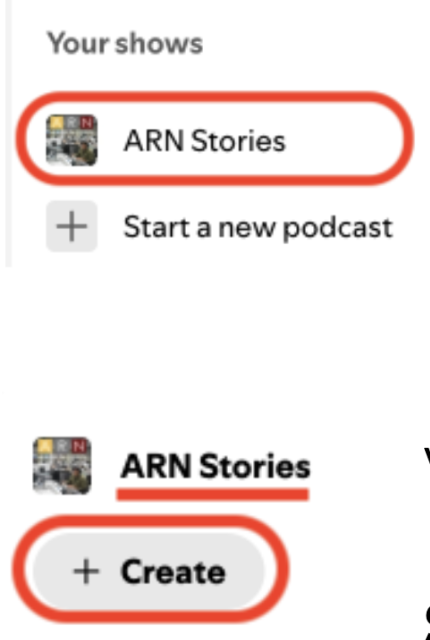
- Under Your Shows in the left-hand column, select ARN Stories.
- Click + Create in the upper-left corner of the screen.
- In a Finder or File Explorer window, locate the final version of the story you want to publish. The file will most likely be stored on the Qumulo shared drive.
- Drag the file into the indicated area in the browser window. You can also click Select a file and navigate to the file’s location.
- On the next page, wait for the file to upload. You can monitor its progress using the bar on the right.
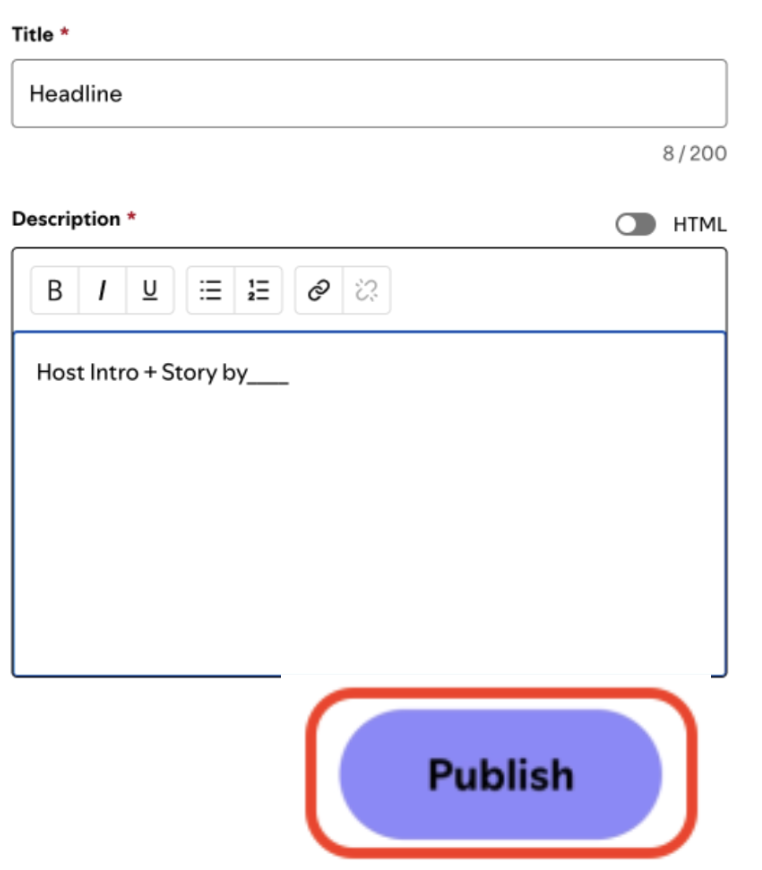
- Enter the producer-approved story title in the Title field.
- Copy the Host Intro from NewsBoss and paste it into the Description field. Add “Story by [name]” at the end of the host intro.
- Click Next to open the Review page.
- Under Publish date, select Now.
- Review all the information. If everything is correct, click Publish.
- Confirm that the story was published successfully:
- Select Episodes in the far-left column.
- Select Published to display all published stories.
- Locate the newly published story in the list.
- To edit the entry, click its Title.
- When you are finished, please log out.
Uploading Full Episodes of From Where We Are
- Under Your Shows in the left-hand column, select From Where We Are.
- Click + Create in the upper-left corner of the screen.
- In a Finder or File Explorer window, locate the final version of the show in the FWWA Archive.
- Drag the file into the indicated area in the browser window. You can also click Select a file and navigate to the FWWA Archive.
- On the next page, wait for the file to upload. You can monitor its progress using the bar on the right.
- Enter the show’s title using the approved naming convention.
- Enter the description previously approved by the producers. It should already appear on the YouTube stream.
- Click Next to open the Review page.
- Under Publish date, select Now.
- Review all the information. If everything is correct, click Publish.
- Confirm that the episode was published successfully:
- Select Episodes in the far-left column.
- Select Published to display all published episodes.
- Locate the newly published episode in the list.
- To edit the entry, click its Title.
- When you are finished, please log out.

Finding the Embed Link for Stories and Shows
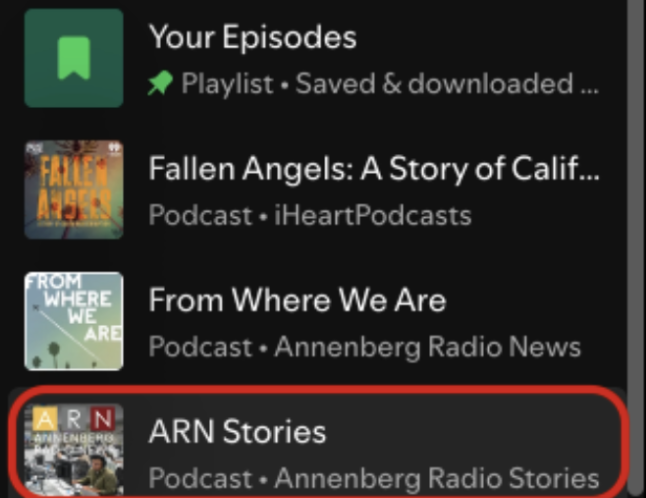
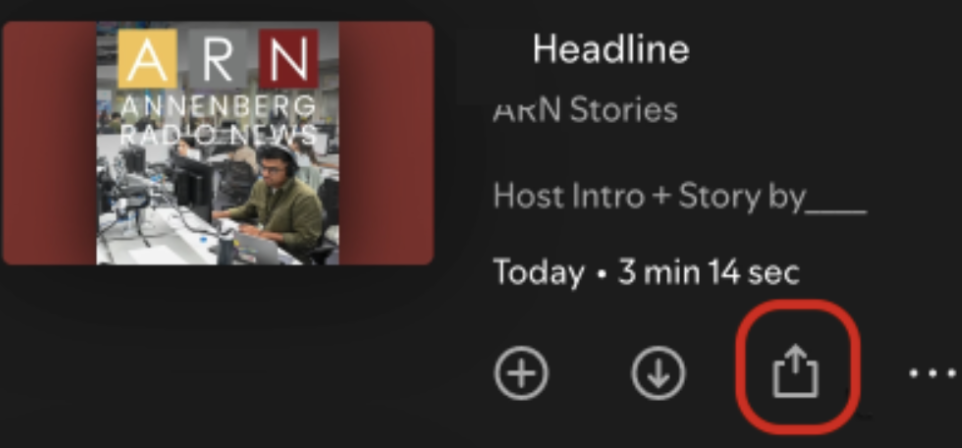
- To embed audio on the Annenberg Media Center website, go to Spotify.com. If you have not logged out of Spotify for Creators, you should already be logged in.
- Look for the story or episode under Recents in the left-hand column.
- If it does not appear there, click Your Episodes and find the story or episode in the list.