
How to: Record audio on FaceTime
RECORDING FACETIME AUDIO
Mac (with Catalina or Mojave)
- Press Command + Shift + 5 to open the screenshot tools.
- You will see options in the horizontal menu to take standard screen shots as well as Record Entire Screen, or Record Selected Portion. Choose which one you want, but if you are just using the audio, it doesn’t really matter.

- Click the Options button and make sure your built-in microphone is checked. If you don’t check this, the audio will not record.
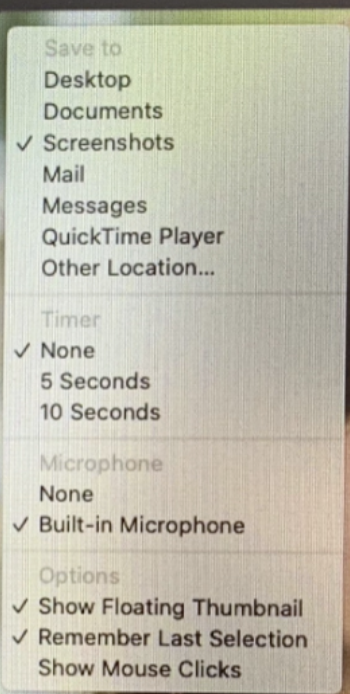
- When you are ready to start recording click Record on the horizontal menu.
- When you are ready to stop recording, click the small Stop button in the menu at the top of the page.
- You can do this before you start the FaceTime call or during the call. You will be able to use your screen while you are recording, or you can press Command + Shift + 5 to bring up a Stop button in the toolbar.
- The recording will show up on your desktop.
- Import it into Adobe Audition for editing.
NOTE: MAKE SURE YOU INFORM THE SUBJECT YOU ARE RECORDING.
Created by Willa Seidenberg